AI Image to Video: How to Plan a Coherent Short Clip
Turn an AI image into a more coherent short video by planning one motion, stable framing, camera direction, duration, and responsible source-image use.
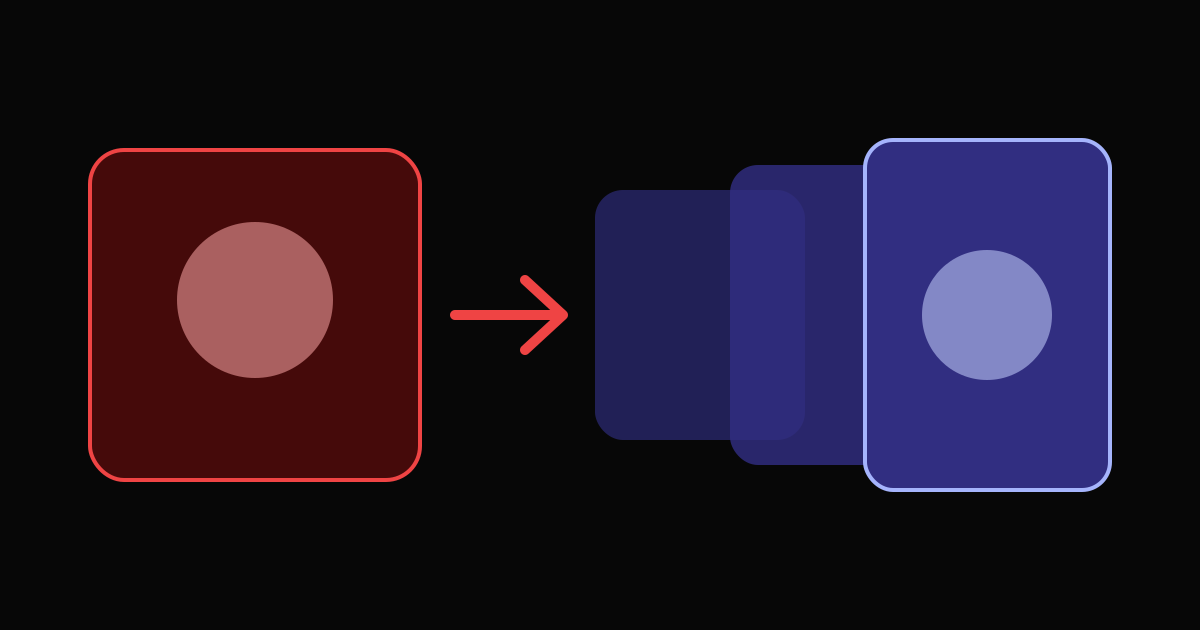
Image-to-video generation works best when the source image already solves the still-frame decisions. The subject, wardrobe, environment, palette, and initial composition should be clear before you ask the model to add motion.
The video prompt then has a narrower job: describe what moves, how the camera behaves, and what should remain stable. This approach is useful for cinematic scenes and fictional adult video, provided the source and subjects comply with the platform's rules.
Start with a video-ready source image
A strong source image has a readable silhouette, stable anatomy, and enough room in the frame for movement. Avoid a crop that cuts through the body part you expect to move. If the subject needs to step forward, leave space in that direction.
Lighting should already match the intended clip. Video generation may add small changes, but it should not be asked to transform midday into a neon night scene while also maintaining character consistency.
Chat18GPT's NSFW AI video generator uses eligible images generated inside the same account for supported image-led workflows. It does not accept external uploads.
Describe one subject motion
Short clips have limited time. Choose one action with a visible beginning and end: turning toward the camera, taking a slow step, adjusting clothing, leaning closer, or letting hair move in a breeze.
Do not combine several unrelated actions. A prompt asking the subject to walk, sit, change expression, pick up an object, and move to another room forces too much change into one shot.
Add one camera instruction
A stable camera is a valid choice. If movement helps, use one simple direction:
- Slow push in
- Gentle pull back
- Small arc around the subject
- Subtle handheld drift
- Locked camera with subject motion only
Camera instructions should support the action. A fast orbit around a subtle facial expression works against the moment and increases visual drift.
Protect continuity explicitly
Name the elements that must stay stable: subject count, face, hairstyle, wardrobe, background, and lighting. Avoid asking for a new outfit or location halfway through a short clip.
If the result morphs or adds people, simplify the motion and remove decorative actions. Use one coherent shot, not hidden edits disguised as motion.
Match duration and orientation to the idea
A shorter duration suits a glance, turn, camera push, or small gesture. A longer supported duration gives a single action room to develop, but it still should not become a multi-scene sequence.
Vertical framing favors a single subject and mobile viewing. Horizontal framing provides more room for environments and lateral motion. Pick the orientation before creating the source image when possible.
Use only fictional, consent-safe sources
Do not animate a real person's photo, imitate a celebrity, or create sexualized likeness media without consent. On Chat18GPT, external uploads, identity cloning, and real-person sexual deepfakes are prohibited. All adult subjects must be fictional, clearly adult, and consensual.
Review the displayed model, duration, source image, orientation, and credit cost before generating. A simple plan reduces wasted iterations and usually produces a more coherent clip.
Frequently asked questions
- What makes a good source image for AI video?
- Use a clearly composed image with a readable subject, stable anatomy, enough space for the intended motion, and lighting that already matches the desired clip.
- How much motion should a short AI video prompt include?
- One subject action and one simple camera direction are usually enough for a short clip. Multiple cuts and location changes create more opportunities for drift.
- Can I animate a photo of a real person?
- Chat18GPT does not accept external uploads and prohibits identity cloning, sexual deepfakes, and real-person likeness manipulation.
Related articles
Ready to create?
Take an idea from the page into a chat, image, or video workspace.